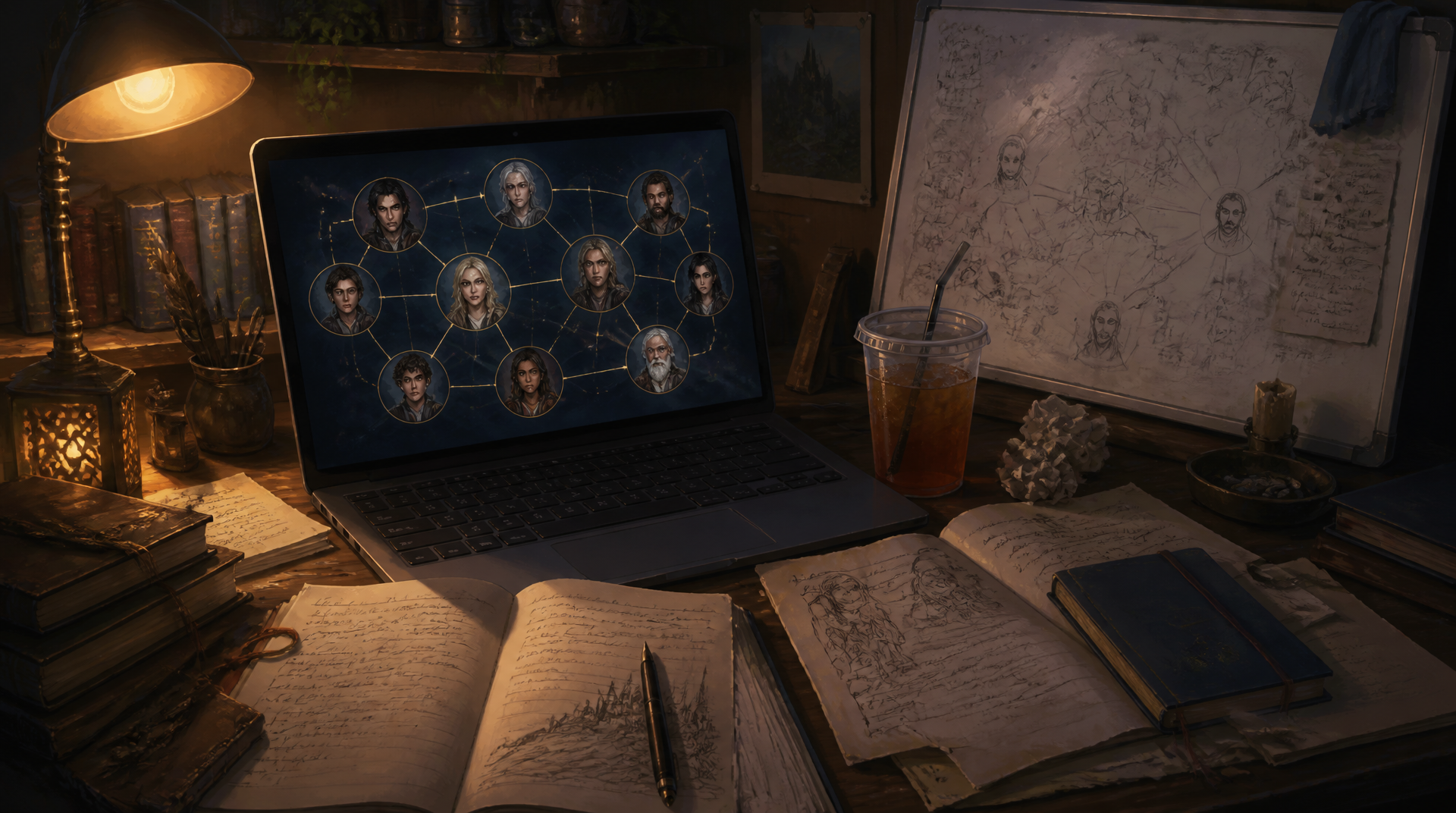
Every saga writer hits the same wall eventually: too many characters, too many overlapping loyalties, and a growing sense that only you and a spreadsheet know how the Duke's illegitimate nephew fits into the rebellion. A character relationship map for writers exists to solve exactly this problem, and it works a lot better on a screen you can update than on a whiteboard that gets erased every time you move desks.
Whiteboards and index cards are fine for a first pass. The trouble starts in book two, when you have added forty more names and cannot remember which arrows still apply. Here is how to build a map that actually keeps up with your story.
Why whiteboards break down for tangled casts
A whiteboard works when your cast is small and static. The moment you are writing a multi-generational fantasy saga with three noble houses, a dozen betrothals, and a war that reshuffles alliances every act, physical mapping starts costing you more time than it saves.
The specific failure points are predictable:
- It is not portable. The map lives in one room. If you draft on a laptop at a coffee shop, you are working from memory or a phone photo.
- It does not scale. Past twenty or so names, a whiteboard turns into a spiderweb nobody can read, including you.
- It has no memory. Erase last month's version to update it, and you have lost the ability to see how alliances shifted over the course of the plot.
- It is disconnected from your actual notes. A change in one place does not automatically remind you to update every other copy of the same information.
None of this means ditch visual mapping. It means the map needs to live somewhere you can revise without redrawing the whole thing.
What a good relationship map needs to do
Before picking a tool or a system, it helps to know what you are actually asking a relationship map to handle for a saga-scale cast:
- Show both family ties, such as parent, sibling, and spouse, and non-family bonds, such as ally, rival, mentor, and informant, without forcing everything into a single family-tree shape.
- Let you revise individual connections as the plot changes. Allegiances shift, marriages happen, and people die.
- Stay legible at forty-plus characters, which usually means filtering the view or focusing on a subset instead of studying the whole cast at once.
- Connect back to useful character details, so the map is not just names and lines floating in space.
This is the gap between a diagram and a working tool. A diagram is static. A working map is something you check before writing a scene because it tells you something true about the story as you currently understand it.
How Pendrilo's Map tab handles it
Pendrilo's story codex is where you keep characters, places, groups, items, and lore notes. The Map tab displays those codex entries as portrait nodes and displays the labeled relationships you add between them as connecting lines. The entries and the links are connected, but they are not the same thing: adding a character to the codex does not invent relationships for you.
You can add a relationship from an entry's Relationships section in the Codex drawer or by using + Relationship on the Map itself. Each relationship can have a short label, such as Married, Rivals, or Mentor/Mentee, plus an optional note. The label field suggests labels already used in the book along with starter labels, which makes it easier to stay consistent without limiting you to a fixed list.
Two layouts for two kinds of tangle
You can view the map as a force-directed Web, which is useful for factions, rivalries, alliances, and messy political connections. Or you can switch to the Chart layout, which arranges entries in rows like a printed family tree. That makes it easier to inspect a lineage or succession question without manually untangling a web of lines.
In Web view, drag portraits into an arrangement that makes sense to you, then pan and zoom around the graph. That arrangement is remembered per book on your device, and Reset Layout gives you a fresh start. In Chart view, Pendrilo lays the entries out automatically: the most-connected entry sits at the top, related entries step outward in rows, and elbow connectors show the links between them. You pan the chart rather than moving individual portraits, and your Web arrangement remains intact when you switch back.
Hover cards on portraits and connections
Hover a portrait or a relationship bubble at the midpoint of a line and a card appears. A portrait card shows the entry's kind, full name, summary, connection count, and chips for the entries it connects to. A relationship card shows the label, its note, and the two entries it joins.
That clarity beats trying to read tiny text crowded onto the graph. It is especially useful when you have several versions of the same relationship: political allies who are also cousins, former lovers, or rivals for the same title.
Focus on unconnected entries and filter the view
Entries with no relationships do not disappear. They wait in an Unconnected row at the bottom of the Map. Use the ∅ Unconnected control to enter a focus view showing only those waiting entries, then work through them one at a time. Once an entry gains a connection, it joins the main graph and leaves the unconnected view.
You can also filter by entry kind. Hide items and lore notes while you are checking the cast, for example, then bring them back when you need to see who owns the cursed sword or which faction controls the archive.
It stays connected to the codex
Clicking a portrait opens that entry in the Codex drawer, where you can review its summary, details, notes, aliases, and relationships. This makes the map a useful starting point rather than a separate reference document.
For deeper reference, any codex entry can also generate a one-page PDF profile sheet. It includes the portrait, details, notes, and relationships, so it is useful when you want a printed character reference beside you during revisions. Profile sheets work for every codex entry type, not only characters.
Deaths show up clearly
Character entries have a Deceased checkbox with a note for when and how the character died. When you mark a character deceased, Pendrilo shows a red strike across their portrait in the codex, the Map, hover cards, and profile sheet.
For a long series, that is a practical continuity check. It will not stop you from writing a dead character into a flashback on purpose, but it makes their status obvious when you are planning a new scene or reviewing a relationship.
Import relationships with review, not directly from a manuscript
If you are back-filling a codex for a book you have already written, Pendrilo's Map tab has an admin-only Import tool. It does not read a finished manuscript and turn it into relationships on its own. Instead, it copies a prompt built from your existing codex names and aliases. You run that prompt through an external analysis tool yourself, optionally using your own EPUB or story materials, then paste the resulting JSON back into Pendrilo.
Pendrilo does not send your manuscript to that external tool. The analysis happens wherever you choose to run it. Back in Pendrilo, the importer resolves names and aliases to existing codex entries, then shows a preview of relationships to add, pairs already linked, and names it could not match.
Nothing changes until you apply the preview. The import is add-only: existing pairs are skipped untouched, unmatched names are reported rather than guessed, and pasting the same analysis again does not duplicate links. Imported relationships become ordinary Map relationships, so you can edit their labels and notes or delete them exactly as if you had added them by hand.
A practical workflow for mapping a saga cast
Here is a workflow that scales from a single novel to a multi-book universe:
- Add characters as they earn a name. Do not wait until the outline is finished. The moment a character gets dialogue or a plot function, give them a codex entry with at least their role and a short summary.
- Log relationships as you establish them. Add a link from the Codex drawer or Map when the story makes the connection clear. Waiting until the end of a draft usually means rebuilding the same information from memory.
- Use the Web view for politics and the Chart view for lineage. Trying to make every alliance look like a family tree usually makes the map harder to read.
- Check the Unconnected row during planning. An unconnected character may be perfectly intentional, but it can also reveal a missing relationship, an abandoned subplot, or a name you no longer need.
- Mark deaths and major status changes immediately. A map that treats dead characters as active is not just untidy. It is a continuity error waiting to happen in the next chapter.
If your book is part of a series, Pendrilo's Universes feature can group multiple books under a shared codex. Relationships between universe-shared entries appear in every book in that universe. If you later make an entry private to one book, relationships involving it are hidden elsewhere rather than deleted.
When you do not need a full map yet
Not every project needs this. If you are writing a standalone with six named characters, a bulleted list of relationships in your outline document is probably enough, and a visual map may just be overhead. Mapping usually earns its keep somewhere around fifteen to twenty active characters, or whenever you catch yourself scrolling through old chapters to check whether she is his cousin or his stepsister.
If you are still deciding whether Pendrilo fits your workflow, the free tools page has no-login calculators and checkers for the publishing side of a project. For the codex and Map tab, you can start a free trial with one book, seven days, and 3,000 cumulative manuscript words.
Either way, the underlying principle holds regardless of what software you use: a relationship map is only useful if it is easier to update than to ignore. A whiteboard fails that test the moment your cast outgrows the room it is mounted in.