If you want to send your novel to an editor in Word, the process is simple, but the order of steps matters. Export a clean .docx, freeze your own work while the editor has it, and bring the finished text back in a single pass. Skip any of that and you can end up with two versions of the book that disagree with each other.
This guide walks through the round trip using Pendrilo's Export for Word (.docx) and Update Text From Word File. The second one replaces the text in your book while keeping your styles and details, so you don't have to rebuild your formatting every time an editor hands back a file. It still needs a careful look from you afterward, and I'll cover exactly what to check.
Why editors want Word, and why that is fine
Almost every professional editor works in Word with Track Changes and comments turned on. It's the common language of the trade. Asking an editor to work in anything else usually costs you time, money or both.
The catch for authors is that a book isn't only text. It has chapter styles, scene breaks, footnotes, special blocks and pictures. A Word file is a good place for an editor to work on words. It's a poor place to keep your book's design. So treat the .docx as a working copy for the text, and keep your real book where its formatting lives.
Before you export: lock down your manuscript
Do these four things first. They take ten minutes and can save you a bad week.
- Finish your own edits. Whatever you send is the version the editor will mark up. Late changes made on your side will have nowhere to go.
- Save a named version. Pendrilo's Version History keeps the last 50 automatic versions, but named versions are kept permanently. Call it something like "Sent to editor, 14 March" so you can always find it.
- Make a backup. Backups are zip files. Put one somewhere outside the book's folder, such as an external drive or cloud storage.
- Decide that the manuscript is frozen. This is the rule that matters most, and the next section explains why.
Export for Word (.docx) and send it
Use Export for Word (.docx) to produce the file. Open it in Word yourself before you send anything. You're not proofreading; you're confirming that it opens, that the chapters are in order, and that it looks like your book's text rather than a mess.
Tell the editor how to work in it
A short email prevents most problems. Ask for these things:
- Keep Track Changes on for every edit, large or small.
- Use comments for questions and suggestions, not for changes to the text itself.
- Work in this one file. Don't split it into chapters and don't paste text into a new document.
- Leave the formatting alone. No restyling, no manual indents, no spacing tweaks. If the editor spots a formatting problem, they should flag it in a comment.
That last point does real work. The cleaner the file comes back, the cleaner the update goes.
Why you should not edit while it is out
Update Text From Word File replaces the text in your book with the text from the Word file. That's what makes it quick. It also means anything you changed in Pendrilo while the editor had the manuscript will be overwritten when the file comes back.
If you can't resist tinkering, keep a separate list of changes you want to make and apply them after the update. Or, if you must keep writing (say, on the next book in a series), work in a different book file.
Bringing the edits back with Update Text From Word File
Don't feed the editor's file straight in. Do your review in Word first.
Resolve the file in Word
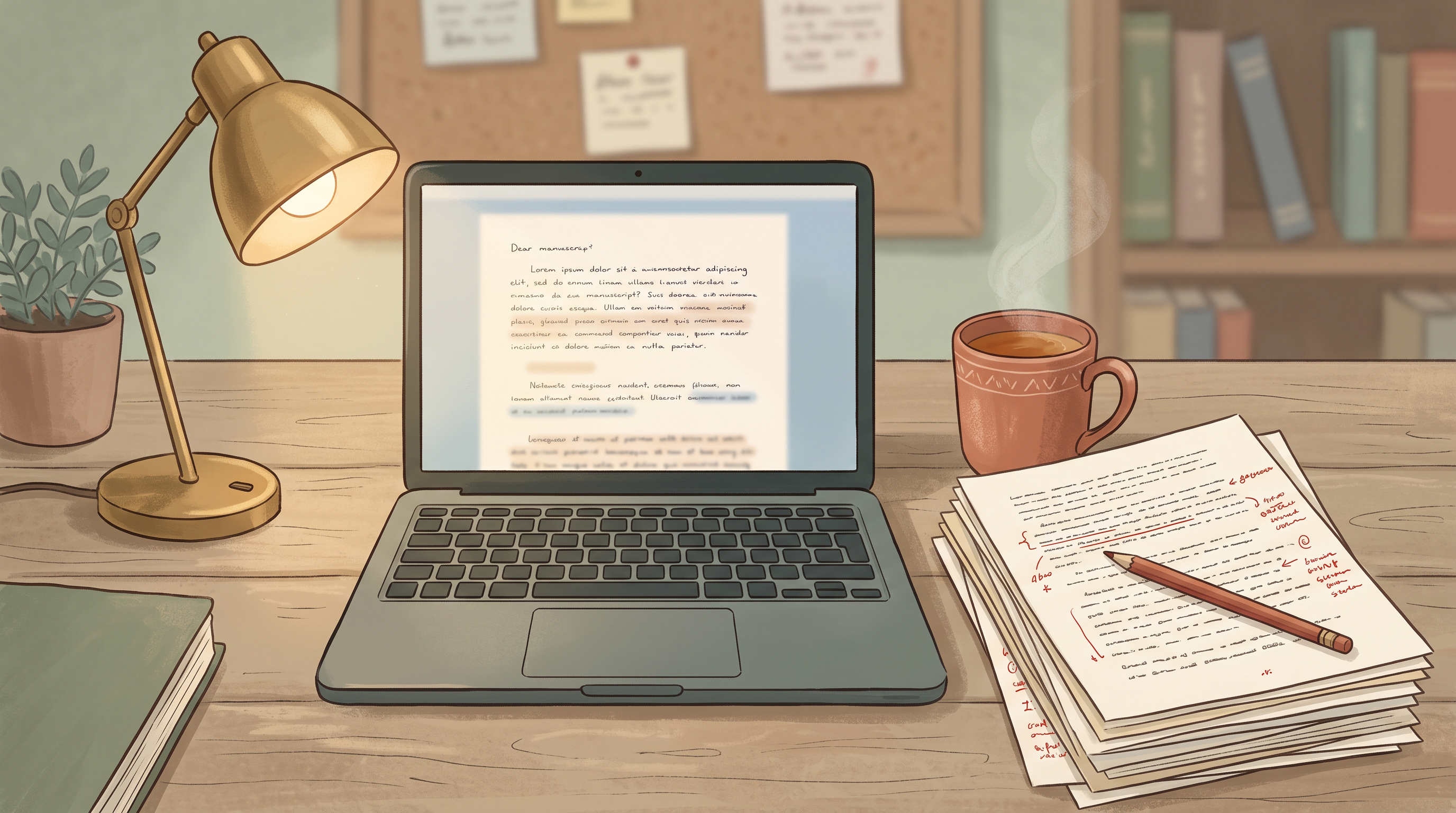
Work through the tracked changes. Accept the ones you agree with and reject the ones you don't. Read the comments, act on them, then delete them. Many authors do this in two passes: the first for the obvious fixes and the second for the judgment calls that need a slow read.
The goal is a single file that contains exactly the text you want in the finished book, with no pending changes or comments left over. Save it under a new name, such as novel-final-text.docx, so the editor's original stays untouched as a record.
This is my advice about preparing the file, not a description of how the update handles markup. Starting from a resolved file means you decide what goes in, instead of leaving it to the software to guess.
Run the update
Before you do, save another named version, something like "Before editor update". Then choose Update Text From Word File and point it at your resolved .docx.
The text in your book is replaced with the text from the file. Your styles and book details stay in place, which is the whole reason to use this route instead of importing the .docx as a brand-new book. An import would give you a fresh book that you'd then have to restyle and re-detail.
Check the result yourself
Treat the update as a first draft of the merged book, not a finished one. Pendrilo can replace the text, but only you can tell whether the book still looks and reads the way you intend. Set aside an hour for this and go through the list below.
Pictures first
If your novel has pictures (a map, a chapter ornament, an illustration, a letter written as an image), look at every single one. Confirm each is still there, in the right place, at a sensible size. If you've added picture descriptions for an accessible ebook, check those too. Don't assume anything that isn't text simply made the trip. Verify it.
Then the structure
- Chapters: Scroll through and confirm every chapter heading is present and in order, with none merged or split.
- Scene breaks: Make sure they are still scene breaks, not blank lines or stray characters.
- Special blocks: Letters, verse, text messages, callouts and tables are the likeliest to need attention. Look at each one.
- Footnotes and links: Open a few and confirm they point where they should.
Then the words
Spot-check the places where you know the editor made big changes. Open the Word file beside your book and compare a handful of paragraphs, particularly the opening of the book, a dialogue-heavy scene and the final chapter. If those match, you can be reasonably confident about the rest.
Finally, look at the page count. Cuts and additions shift it, and a change of even a few pages can matter for your spine width and paperback cover. The Words → Pages Estimator in Pendrilo's free tools gives you a quick sense of where you landed, and your formatter's own page count is the number to trust for the cover.
If something looks wrong
Don't patch around a bad update. Go back to the named version you saved ("Before editor update") and compare. Remember that restoring a version always creates a new book rather than overwriting the current one, so you can open both and see what changed without risking either. Once you know what went wrong, fix the Word file, then run the update again from the restored copy.
The most common causes are boring ones: the editor restyled something by hand, the file was split and reassembled, or tracked changes were still pending when the file went in. A resolved, single-file .docx avoids nearly all of them.
When the check passes, save one more named version, "Editor edits merged", and take a fresh backup. Then you can move on to your own proofreading pass, or to the next round with your editor, with a clean record of where the book stood at each stage.
If you'd like to try this routine on your own manuscript, you can sign up for Pendrilo. It's free during the beta, and your books stay on your own computer.